This blog is intended to supplement our main site and offer insights into our products, ideas and development processes.
Showing posts with label picasa. Show all posts
Monday, July 4, 2016
Sticky captions in PicsPro slideshow
PicsPro version 5.3.2 is now available on Google Play.
This new release allows Sticky captions during slideshow. This new feature allows you to control if the photo captions are displayed or not in slideshow mode.
To enable this feature, go to the app's Settings, tap on Photo Browsing, then scroll down to the Slideshow section, where you can enable or disable the Sticky captions option.
Sunday, June 14, 2015
Upload to collaborative albums in PicsPro
Starting with version 4.6.8. PicsPro allows you to upload to a "collaborative" album created by another user.
To upload to a collaborative album:
1. From the sliding menu, select "Contacts". The app will show you the contacts you flagged as "favorite" on your phone. (You can show all contacts by clicking on the funnel icon in the top-right).
2. Tap on the contact who shared a collaborative album with you.
3. The app will show a list of albums that are either public or shared with you.
4. The albums to which you can upload ("collaborative albums") are shown with a "+" icon in the bottom left - this means you can add photos. See the + symbol near the camera icon below.
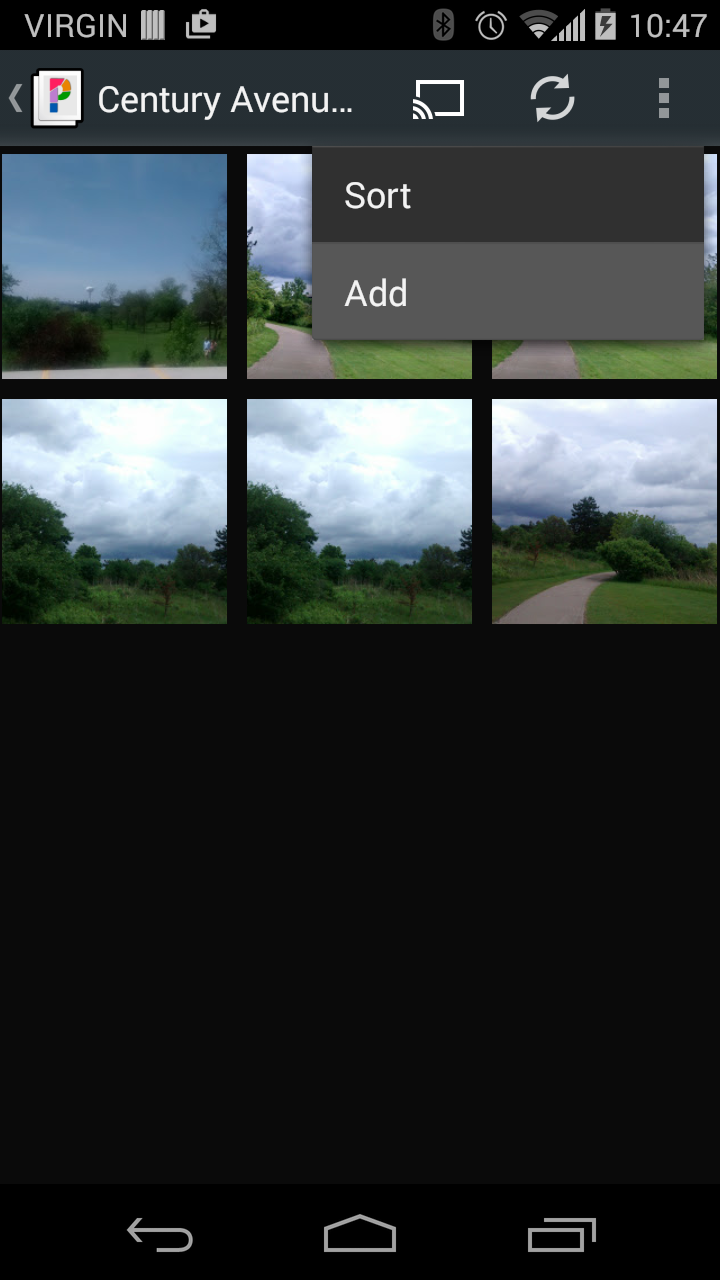
6. In the thumbnail view, you will see an "Add" option in the top-right menu. Depending on your phone's resolution and orientation, this may be either a "+" sign or the text "Add" in the overflow menu.
7. Tap on the Add option. This will open your local photo app (ex. Gallery or Google Photos or any app capable of providing photos). You can long-press to multiselect, then press open to confirm.
8. The selected pics will be uploaded to the collaborative album. You will see an upload notification (upwards pointing arrow) in the notification area. You can drag-down that icon to see more info.
9. Once uploaded, the pics will appear in the target album.
Labels:
collaborative album,
google photos,
picasa,
picspro,
shared album,
upload
Sunday, February 22, 2015
Google 2 step verification with PicsPro for Picasa
By default, PicsPro for Picasa uses the Google accounts and the authentication mechanism of the phone.
However, if you enabled "2-step verification" to your Google account, things can get a bit more complicated.
Here are two ways to use an account with 2-step verification in PicsPro.
The Android OS will show the screen below. Press "Try again".
You will be prompted to re-type your password. Use your normal Google password and press the
However, if you enabled "2-step verification" to your Google account, things can get a bit more complicated.
Here are two ways to use an account with 2-step verification in PicsPro.
Option 1: Using a "built-in" account
In the Web Albums section, press Refresh in the top-right menuThe Android OS will show the screen below. Press "Try again".
You will be prompted to re-type your password. Use your normal Google password and press the
"Sign in" button.
Android will not be able to authenticate yet due to the 2-factor verification and it will show the screen below. Press "Next".
You will receive a verification code through SMS. Enter this code in the screen below and press "Next".
From now on, your Google account will work properly with PicsPro for Picasa.
Option 2: Using a non built-in account
In PicsPro, go to the app's Settings -> Accounts and deactivate the "Use phone's accounts" option.
You will be presented with the regular Google login screen. Type your email and password and press "Sign in".
Google will send you a verification code by SMS. Enter it in the next screen.
Google will prompt you to allow PicsPro to access your photos. Press "Accept".
And that's it! From now on, you can use your 2-step verification account with PicsPro for Picasa.
Saturday, September 13, 2014
Chromecast Support in PicsPro for Picasa
Starting with version 4.5.1, PicsPro for Picasa includes Chromecast support for full screen online media.
To use the Chromecast functionality, please read the steps below.
1. Make sure your Android device and your Chromecast are on the same WiFi network, otherwise the Chromecast cannot be detected.
2. Once the Chromecast device is detected, you will see a Chromecast icon in the top-right menu of any online PicsPro section, as shown below.
3. Tap on the Cast icon and you will be prompted to select a Chromecast device. In this case, I have only one Chromecast device called "Living room"
7. The online media (photos or videos) will continue to be displayed when you switch to another app on your Android device. A Chromecast icon will be displayed in the notification area as long as you are connected.
By dragging-down that notification and tapping on it, you can change the audio volume or disconnect from Chromecast.
If the volume is too low, you can further increase it by using the remote control of your TV (or the device to which your Chromecast is connected).
Happy Chromecasting!
To use the Chromecast functionality, please read the steps below.
1. Make sure your Android device and your Chromecast are on the same WiFi network, otherwise the Chromecast cannot be detected.
2. Once the Chromecast device is detected, you will see a Chromecast icon in the top-right menu of any online PicsPro section, as shown below.
4. The app will connect to your Chromecast device. This may take a couple of seconds. Once connected, the Cast icon will be displayed with a white fill, as shown below.
5. As mentioned before, only online full screen media will be "chromecasted". If you are not in a full screen view, you have to navigate to one.
Displaying local media is not possible at this time.
6. Online Picasa Web videos can also be played to the Chromecast. Just press the big "play" button and the video will start playing through your Chromecast. While the video is playing, a "control box" like the one below will be displayed, allowing you to pause or stop the video.
While playing videos, you can adjust the audio volume by using the "volume up" and "volume down" buttons on your device.
By dragging-down that notification and tapping on it, you can change the audio volume or disconnect from Chromecast.
If the volume is too low, you can further increase it by using the remote control of your TV (or the device to which your Chromecast is connected).
Happy Chromecasting!
Tuesday, June 11, 2013
New main screen design in Picasa Mobile 3.5.4
Starting with version 3..5.4, Picasa Mobile allows you to choose between two main screen designs: "Classic" and "Colorful".
You can switch between the two designs by going to Settings -> Main menu theme:
Here are the two designs side-by-side:
It would be extremely useful to know which one you like best, so please do not hesitate to leave your feedback here.
Other enhancements in this release:
You can switch between the two designs by going to Settings -> Main menu theme:
Here are the two designs side-by-side:
It would be extremely useful to know which one you like best, so please do not hesitate to leave your feedback here.
Other enhancements in this release:
- Added 2048 px resize before upload. This is only available for devices running Android 4.0 and above and should be considered experimental.
- Fixed random crash when user exits a long loading task.
Monday, May 20, 2013
Set as wallpaper, web image sharing, ancestral navigation in Picasa Mobile 3.5.0
We just published a new version of Picasa Mobile, 3.5.0, which adds the following new features: setting photos as wallpaper, ancestral navigation and more web photo sharing option.
We also fixed a bug occurring sometimes when deleting the last photo in an album, in full-screen mode.
The option is available from the full-screen mode, as illustrated below:
Please note that Android will crop your photo slightly, to allow for the "slide" effect when moving from one home screen to the next.
When pressing the "Up" button (see highlighted in blue below, in top-left), the app will go to the previous screen in the screen hierarchy.
Set as album cover - not available in Google's Picasa Web API
We also tried to implement "set photo as album cover" - unfortunately this operation is not available in Google's Picasa Web API. Hopefully, they will make it available at a later time.
More details on this issue at the address below:
https://groups.google.com/forum/?fromgroups=#!topic/google-picasa-data-api/DhWZYUGfa2w
We also fixed a bug occurring sometimes when deleting the last photo in an album, in full-screen mode.
Setting photos as wallpaper
You can set any photo as your Android devices' wallpaper, including your online photos, your local photos, your contacts' photos, as well as any photos displayed in the Search section.The option is available from the full-screen mode, as illustrated below:
Please note that Android will crop your photo slightly, to allow for the "slide" effect when moving from one home screen to the next.
Ancestral navigation
Ancestral navigation is just a fancy term for the "Up" button introduced starting with Android 3.0.When pressing the "Up" button (see highlighted in blue below, in top-left), the app will go to the previous screen in the screen hierarchy.
More web photo sharing options
Picasa Mobile 3.5.1 adds the "Share image" option, complementing the existing "Email image" option.
You can access this option either from the thumbnail view, by long-pressing on a thumbnail, or from the full screen view, by using the options menu.
Set as album cover - not available in Google's Picasa Web API
We also tried to implement "set photo as album cover" - unfortunately this operation is not available in Google's Picasa Web API. Hopefully, they will make it available at a later time.
More details on this issue at the address below:
https://groups.google.com/forum/?fromgroups=#!topic/google-picasa-data-api/DhWZYUGfa2w
Bug fixes
We also fixed a bug occurring from time to time when deleting the last photo in a web album, in full screen mode.Tuesday, June 12, 2012
Local Media improvements in Picasa Mobile 3.1.6
A new Picasa Mobile release, 3.1.6, has just been published to Google's Play Store.
The highlights of this version:
- A nicer UI for the Local Media section, including local album thumbnails and photo counts
- The "Yesterday" option, when grouping local media by date
- A few sorting (ordering) options in the thumbnail views:
- Sorting by date (ascending or descending)
- Sorting by file name (ascending or descending)
![]() |
| Thumbnails and photo counts, when grouped by date |
![]() |
| Thumbnails and photo counts, when grouped by folder |
![]() |
| The sorting option, in the options menu |
![]() |
| Various sorting orders |
Thursday, May 10, 2012
Optional resizing before upload in Picasa Mobile
A new version of Picasa Mobile, 3.1.5, has just been released. The highlights of this update:
- Optional resizing of photos before upload. This can be enabled from Settings -> Uploads -> Resizing, as shown in the screenshots below. When resizing is activated, the available photo sizes are 1280, 1024 and 800 pixels. This means that the photos will be scaled down to have the largest edge equal to the selected size, while preserving the aspect ratio. (Note: if a photo is smaller than the selected size, no scaling will be applied.)
- We fixed an issue in the embedded camera occurring on some low-end devices when the application would go into pause mode.
Monday, April 16, 2012
"Select All" button and improved zoom
We have just released a new version of Picasa Mobile, 3.1.2, including the following new features / improvements:
- We added a "Select all" button when uploading local photos (see screenshot at the end of the post)
- We improved the zooming and panning functionality
For a long time, we tried to resist to the idea of a "Select all" button in upload mode. This was mainly in order to avoid very long and bandwith-intensive upload operations. In other words, to protect the users from themselves...
However, due to the overwhelming demand, we finally caved in and added the long-awaited "Select all" button. We can only hope that you will use it wisely...
To be on the safe side, we also built in some protections mechanisms: "select all" will not select more than 1000 photos and the user will be warned and prompted to confirm before starting heavy uploads.
Monday, March 26, 2012
Upload/download queue management in Picasa Mobile 3.1.0
Starting with Picasa Mobile 3.1.0, users have now the option of viewing the pending items in the upload/download queue.
For this purpose, we added two queue management screens that can be accessed by dragging-down the upload or download notification icon and then tapping on the notification text, as shown in the screenshots below.
Monday, March 12, 2012
Larger Thumbnails (optional)
We just published a new version of Picasa Mobile, 3.0.7. The major highlight of this version is allowing the users to see larger thumbnails.
This option can be activated from Settings -> Photo Browsing -> Viewing, as shown below.
Sunday, February 5, 2012
Picasa Mobile now includes a Quick Launch widget
We have just published a major release of Picasa Mobile, version 3.0.1, which includes a Quick Launch widget.
On most Android models, to add the widget to one of your home screens, you have to do the following:
- Long press on the targeted home screen
- From the context menu that appears, select "Widgets"
- Find the "Picasa Mobile Quick Launch" widget and tap on it. This will add the widget to your home screen.
Please note that on some Honeycomb and ICS models, the widget may not appear right-away in the list of available widgets. If you encounter this issue, all you need to to is a fast reboot of your device.
Please note that the widget will not work if you move the app to the SD Card (this is an Android limitation).
Many thanks to Steven and James for suggesting this enhancement!
Sunday, January 29, 2012
Optional hiding of Google+ and Blogger albums
We have just released a new version of Picasa Mobile, 2.8.4, with some more optional features:
- Optional hiding of albums created by Google+ and Blogger. This can be activated from Settings - Photo Browsing - Viewing - Hide Google+ albums.
- Optional prompting for target album before manual uploads. This can be activated from Settings - Uploads - Manual uploads - Prompt for album.
Also, the Prompt for caption setting has been split into two: one for the embedded camera and one for manual uploads. Starting with this version, Prompt for caption also applies to batch uploads (if entered, all photos in a batch will share the same caption).
Sunday, January 22, 2012
Picasa Mobile 2.8.2 is now availble
We just published a new version of Picasa Mobile, 2.8.2. Among the highlights of the new version:
- Local media grouping by folder (optional)
- "About" screen
- Non-uploaded local photo filter
- Smoother scrolling for local media
Friday, January 6, 2012
Thumbnail refresh in Picasa Mobile
We just published a new version of Picasa Mobile, 2.7.7, which includes a "Rescan" feature for the local media.
When used, the "rescan" feature will force the Android OS to create new thumbnails for the selected photos.
This was needed because, in certain situations, some thumbnails generated by Android are getting out of sync with their corresponding photos.
A more technical explanation: if the thumbnail information is not properly deleted when deleting a photo, Android OS reuses the thumbnail IDs (instead of generating new ones). Then, when taking a new photo, Android "thinks" that the thumbnail already exists for that photo and it inadvertently reuses the thumbnail of a deleted photo.
Many thanks to Corin for reporting the issue.
When used, the "rescan" feature will force the Android OS to create new thumbnails for the selected photos.
This was needed because, in certain situations, some thumbnails generated by Android are getting out of sync with their corresponding photos.
A more technical explanation: if the thumbnail information is not properly deleted when deleting a photo, Android OS reuses the thumbnail IDs (instead of generating new ones). Then, when taking a new photo, Android "thinks" that the thumbnail already exists for that photo and it inadvertently reuses the thumbnail of a deleted photo.
Many thanks to Corin for reporting the issue.
Saturday, July 2, 2011
Picasa Mobile 2.0 Is Now Live!
As mentioned in an earlier post, a major release of Picasa Mobile for Android is now available for download from the Google Android Market.
The main highlights of this new version:
Stay tuned for more highlights and new features! As usual, all the updates are free, always!
The main highlights of this new version:
- Social features:
- Public Picasa photo search
- View public Picasa albums of your contacts
- Invite your friends to see your albums with one click, from within the app
- Web album visibility editing
- French, Spanish, Italian and German translations
- Improved overall performance and stability
Stay tuned for more highlights and new features! As usual, all the updates are free, always!
Wednesday, June 15, 2011
Working on Picasa Mobile 2.0
As some of you may have noticed, we slowed a bit the pace of new releases. That is because we are working hard on the version 2.0 of Picasa Mobile, which we expect to become available towards the beginning of July.
This major release would include lots of performance improvements, as well as some social features.
Stay tuned!
This major release would include lots of performance improvements, as well as some social features.
Stay tuned!
Thursday, June 2, 2011
Feedback, Please!
A month has passed since we released Picasa Mobile and we have well over 200 downloads. One of the most challenging things so far has been getting user feedback.
Like with any other consumer product, knowing what the user expects from it, how he/she uses it and what other features they would like are essential ingredients in creating a successful app.
So far, we have been pretty quick in responding to our users' queries, and our above average rating reflects it.
We were told that browsing through a lot of local pictures may be a problem, so we implemented a time filter.
We were asked for camera key support and we implemented it as of version 1.0.9.
We were told the some phones don't have a physical SD card (see LG-P999 G2x) and, starting with version 1.1.2, we adapted Picasa Mobile to use emulated SD cards.
But we are sure that the items above are just the tip of the iceberg. So please, send us your feedback so we can continue to improve Picasa Mobile. And rest assured that any upgrade will always be free.
Like with any other consumer product, knowing what the user expects from it, how he/she uses it and what other features they would like are essential ingredients in creating a successful app.
So far, we have been pretty quick in responding to our users' queries, and our above average rating reflects it.
We were told that browsing through a lot of local pictures may be a problem, so we implemented a time filter.
We were asked for camera key support and we implemented it as of version 1.0.9.
We were told the some phones don't have a physical SD card (see LG-P999 G2x) and, starting with version 1.1.2, we adapted Picasa Mobile to use emulated SD cards.
But we are sure that the items above are just the tip of the iceberg. So please, send us your feedback so we can continue to improve Picasa Mobile. And rest assured that any upgrade will always be free.
Sunday, May 22, 2011
Picasa Mobile - Other Platforms
Yes, we were thinking big and we named it Picasa Mobile, but so far, it only runs on Android phones and tablets.
Do we intend to make it available on other mobile platforms, like iPhone and Blackberry? Of course we do! But there are some challenges...
While the Android SDK and its tools make mobile development a breeze, the same cannot be said about other platforms. Here's why.
1. iPhone / iPad
Developing apps for iPhone makes sense from a market share standpoint. The iPhone's market share is estimated at about 30% (slightly below Android's) and it would make business sense developing for its platform.
However, developing for iPhone is highly restrictive.
First off, you absolutely have to develop on an Apple device. Since a Mac laptop sells for about 1,200 CAD, this begs the question: do I really want to spend that kind of money to develop 99 cent apps?
Secondly, publishing on Apple's App Store seems quite painful. The apps are subject to a review process and only the approved apps make it to the App Store. And when it's finally published, if a user asks for a refund, Apple gets to keep its 30% and the developer has to refund the whole cost out of her pocket.
In terms of coding, Objective-C (the development language for iOS and most things Apple), although arguably faster, seems somewhat antiquated (think header files) and uses non-mainstream development paradigms (ex.: messages instead of method calls).
In my opinion, Java seems a lot more natural, intuitive and productive.
2. Blackberry / PlayBook
The transition from Android to Blackberry development seems less steep, since both of them are Java-based. Also, with RIM (the creator of Blackberry) being a Canadian company, it gives us even more incentive to try it out.
There's a big downside, though: the Blackberry development tools only run on Windows! Yes, you heard it right, although it is Java-based and in the form of an Eclipse plug-in, you need Windows to run it...
This presents a big challenge for us, since all our development is done on Ubuntu.
The PlayBook development seems a bit more accessible and it is available for Linux; however its market share has to pick up and RIM has to fix some of the problems with its tablet before it becomes really interesting for developers.
On the bright side, RIM has gotten the message that it cannot survive without a thriving development community. Although it may be a bit late for the existing Blackberry devices, the new direction seems to favor Adobe's Air platform for app development - in my opinion, a very good step forward.
Another good step: apparently RIM has waived the developer fee. (I'm using the word apparently since the said fee is still mentioned a few times on their website, I guess they haven't updated their whole site yet.)
Rumor has it that they also intend to support Android apps, which kind of begs the question: why build a different OS to run Android apps, when you can use the Android OS?
3. Windows Phone
At this time, we find developing for Windows Phone very unlikely. As mentioned before, all our development is done on Ubuntu.
Moreover, Windows Phone's market share and prospects are quite dim and we don't like betting on a loosing horse.
But, while we're on the subject, I can't stop wondering, what was in Nokia executives' heads when they forged an alliance with Microsoft? I understand that their Symbian OS had become quite outdated, but they could easily have adopted the Android platform without any strings attached.
Conclusion
For the foreseeable future, I think we'll stick with the Android framework. Although not perfect, it is, in our opinion, the best mobile framework available.
And you cannot help but be amazed at the stroke of genius Google showed here: release an open-source framework to be used and improved by the most handset manufacturers out there. And, while at it, trying to keep the mobile universe free...
Do we intend to make it available on other mobile platforms, like iPhone and Blackberry? Of course we do! But there are some challenges...
While the Android SDK and its tools make mobile development a breeze, the same cannot be said about other platforms. Here's why.
1. iPhone / iPad
Developing apps for iPhone makes sense from a market share standpoint. The iPhone's market share is estimated at about 30% (slightly below Android's) and it would make business sense developing for its platform.
However, developing for iPhone is highly restrictive.
First off, you absolutely have to develop on an Apple device. Since a Mac laptop sells for about 1,200 CAD, this begs the question: do I really want to spend that kind of money to develop 99 cent apps?
Secondly, publishing on Apple's App Store seems quite painful. The apps are subject to a review process and only the approved apps make it to the App Store. And when it's finally published, if a user asks for a refund, Apple gets to keep its 30% and the developer has to refund the whole cost out of her pocket.
In terms of coding, Objective-C (the development language for iOS and most things Apple), although arguably faster, seems somewhat antiquated (think header files) and uses non-mainstream development paradigms (ex.: messages instead of method calls).
In my opinion, Java seems a lot more natural, intuitive and productive.
2. Blackberry / PlayBook
The transition from Android to Blackberry development seems less steep, since both of them are Java-based. Also, with RIM (the creator of Blackberry) being a Canadian company, it gives us even more incentive to try it out.
There's a big downside, though: the Blackberry development tools only run on Windows! Yes, you heard it right, although it is Java-based and in the form of an Eclipse plug-in, you need Windows to run it...
This presents a big challenge for us, since all our development is done on Ubuntu.
The PlayBook development seems a bit more accessible and it is available for Linux; however its market share has to pick up and RIM has to fix some of the problems with its tablet before it becomes really interesting for developers.
On the bright side, RIM has gotten the message that it cannot survive without a thriving development community. Although it may be a bit late for the existing Blackberry devices, the new direction seems to favor Adobe's Air platform for app development - in my opinion, a very good step forward.
Another good step: apparently RIM has waived the developer fee. (I'm using the word apparently since the said fee is still mentioned a few times on their website, I guess they haven't updated their whole site yet.)
Rumor has it that they also intend to support Android apps, which kind of begs the question: why build a different OS to run Android apps, when you can use the Android OS?
3. Windows Phone
At this time, we find developing for Windows Phone very unlikely. As mentioned before, all our development is done on Ubuntu.
Moreover, Windows Phone's market share and prospects are quite dim and we don't like betting on a loosing horse.
But, while we're on the subject, I can't stop wondering, what was in Nokia executives' heads when they forged an alliance with Microsoft? I understand that their Symbian OS had become quite outdated, but they could easily have adopted the Android platform without any strings attached.
Conclusion
For the foreseeable future, I think we'll stick with the Android framework. Although not perfect, it is, in our opinion, the best mobile framework available.
And you cannot help but be amazed at the stroke of genius Google showed here: release an open-source framework to be used and improved by the most handset manufacturers out there. And, while at it, trying to keep the mobile universe free...
Monday, May 2, 2011
Picasa Mobile - Initial Relase
At long last, on May 1st 2011, we released our first Android application dubbed Picasa Mobile.
It can be downloaded from the Android Market and more details, including a comprehensive online help can be accessed on the Imprologic's main site.
We felt there was a need on the market for such an application. The built-in Gallery app doesn't offer a lot of features in terms of interacting with Picasa while other similar applications seemed kind of incomplete or presented security concerns.
The intention was to allow the user to easily browse through her Picasa web albums, manage them and upload new photos, even directly from the camera. We are really proud of this last feature since no other Android app on the market seems to offer it. As the cherry on the cake, Picasa Mobile also uploads your current coordinates along with your pictures when you use its Camera option.
We also believe that the best place for your photos is on the web, you can easily share them with your friends and you can never loose them. Your phone may break or get stolen, you don't want to loose your precious vacation or family pictures if that happens. Bottom line, at any given moment, storing your photos online is the safest alternative.
Finally, here's a summary list of features, at the time of writing this post:
It can be downloaded from the Android Market and more details, including a comprehensive online help can be accessed on the Imprologic's main site.
We felt there was a need on the market for such an application. The built-in Gallery app doesn't offer a lot of features in terms of interacting with Picasa while other similar applications seemed kind of incomplete or presented security concerns.
The intention was to allow the user to easily browse through her Picasa web albums, manage them and upload new photos, even directly from the camera. We are really proud of this last feature since no other Android app on the market seems to offer it. As the cherry on the cake, Picasa Mobile also uploads your current coordinates along with your pictures when you use its Camera option.
We also believe that the best place for your photos is on the web, you can easily share them with your friends and you can never loose them. Your phone may break or get stolen, you don't want to loose your precious vacation or family pictures if that happens. Bottom line, at any given moment, storing your photos online is the safest alternative.
Finally, here's a summary list of features, at the time of writing this post:
- Direct camera upload including GPS coordinates - it will upload your photos the moment you take them. The photos will appear in your default Picasa album and they will include the location where you were at the time.
- Fast Picasa album and photo browsing - you can use this app as a virtual wallet photo, you can show your Picasa albums to friends and brag about the places you visited.
- Manage your Picasa albums: create new albums or update existing ones.
- Local photo browsing and upload: review the pictures on your phone's SD card and upload them to the album of your choice.
- Multiple accounts: you can easily switch between all your Picasa accounts. Starting with version 1.0.5, you can choose to use your phone's built-in Google account(s).
- Secure connections: all the communication with Google Picasa is over https.
- Free and continuous software updates: we will be releasing new features often, based on user feedback.
And because a picture is worth a thousand words, you may also want to see some Picasa Mobile screenshots, or a video demo of the app.
Subscribe to:
Posts (Atom)